YaBS – notes and recent changes (EN)¶
- Switching from YaBS 1.3.2 (Derby → H2): File › Import › From YaBS 1.3.2 … takes over an old YaBS 1.3.2 database (Apache Derby) completely into the open H2 database: contacts with addresses, documents with positions, products with prices and suppliers, expenses, revenues, accounts, tax rates, groups, users with passwords and rights, user and global settings, number formats, templates with their files, attachments, history, schedules, reminders, conversations, activity lists, product orders, mail templates, mass print rules, favourites and trash entries – with their numbers, dates ("created on") and old ids, so all links stay and the next number continues. YaBS finds the folder of the old database (usually
~/.yabs/<database name>, containingservice.propertiesandseg0) or you choose it. The old database is never opened or changed: YaBS reads a copy (older versions are first updated on the copy as YaBS 1.3.2 would have done). How: create a new, empty database first (File › Connection manager › New database …), then import; the default data of the new database (administrator, groups, accounts, tax rates …) is replaced by the old data – a database with contacts, documents or products of its own is refused. The templates of the new database are kept as additional templates, as are countries and settings the old database does not have. The old substitutes are converted back:<removedbackslash>becomes \ again,`becomes ' (can be switched off; number formats and document numbers keep their`so numbering stays the same). The import runs in one transaction (on an error the new database stays unchanged) and finally shows the old and imported rows per table; anything that could not be taken over is listed explicitly (only the record locks of the old program are not taken over, the search index is rebuilt). The report is also saved in the YaBS folder. Then restart YaBS and sign in with a user of the old database (same password as before). Also offered in the setup assistant at first start ("Take over the data of YaBS 1.3.2 …" under Local) and in the connection manager (Import from YaBS 1.3.2 …: a new database with the old data); YaBS then starts signed in as the administrator of the old database. - Database: new local installations use H2; Derby databases keep working. Developer mode
-devmode: H2 in memory only, mails are saved as.emlindevmode-mailsinstead of being sent. PostgreSQL and MySQL/MariaDB are supported; new server databases are created in one step fromdb/schema.sql. Missing tables are created at start. Details: Datenbank. - Connection manager (File › Database connections …, at start with several connections): list of all databases with name, type and place (missing ones in red), sign in and connect in one step. New database … sets one up with the setup assistant, then YaBS starts signed in with it; Cancel returns to the list. Add existing … adds an H2 or Derby database, plus Rename and Remove (the entry only). Switching runs the same checks as a program start (update, missing tables). At start open: the database used last (default) or always a certain one (
connectionstart.properties;-connectionInstancewins). On an error the current connection stays active. - Zip backup (Control Panel › Database): shows the database in use (type, place, size) and whether a zip backup is possible (server databases are backed up on the server). Closes the local H2/Derby database, zips it with a timestamp into a folder (variables
[HOME] [APPDIR] [DBNAME] [YEAR] [MONTH] [DAY]), reopens it; keeps the newest 3 by default; optionally at every exit. Restore unzips next to the zip and adds a new connection "Backup". The older tools (Derby backup, SQL export, restore) are hidden. - Local options, folders: each folder field says which folder is used now, also when empty (then the folder chosen last).
- File name defaults: insert variables and
/from a list, with a preview. Variables: wiki. - User settings: Document dates, Export and New positions explain every option; New positions sets unit, quantity and VAT of new positions and which product fields make the position text (with preview).
- Regional settings: formats with a country (currency), an example of number, amount and date; dates follow the format everywhere, also in e-invoices.
- Default font: Apply changes the open windows at once; all windows and dialogs use it after a restart. The size is set with View › Zoom.
- Translate (Control Panel › Translate): all keys sorted, filter over all columns, a base language to start from; Save and use creates one own language per user, fills missing translations with English and uses it at once;
.propertiesimport/export (UTF-8 and ISO-8859-1). - Script manager: Use as choice with an explanation of what the name does, help text, Toolbar actions… and Documentation buttons; scripts may span several lines, are loaded once and apply at once after a change. Details: Scripts.
- Groovy plugins (Control Panel › Plugin manager): editor with highlighting; an empty plugin file opens with a working skeleton.
- Settings lists (Mail templates, Reminders, Accounts, Product groups, Groups): Save creates a new entry when none is selected; Save as new creates a copy everywhere – in Settings, the File menu and the More menu of the document, contact and product bar (Ctrl+Shift+S).
- Menus: New offer/order/invoice/credit note, Expenses, Income, Bill of materials, Product overview, Settings …, Database connections …. Product orders, new deposits and activity lists are hidden; existing ones stay readable.
- Search: the magnifier in the contact, document and product bar (or Ctrl+Shift+F) opens "Search anything" right below it. Positions found show their document (type and number, customer, date), documents also the customer; long texts are shortened around the searched word, so e.g. an order number stays visible.
- Editing templates (Control Panel › Templates): Edit in LibreOffice opens the template as a file in the YaBS folder (
templates-edit/<name>_<id>.odt). Every save there (Ctrl+S) is taken over at once: a message in the status bar, an entry in the history, and the File card shows "Open in LibreOffice · Last change taken over: …". No need to import again; the old watch checkbox and Discard changes are gone. - Template manager: a Preview (last card, full width) always shows the first page with a document and 20 sample positions, made again after every save (Show larger, Other document …). Position table card: the columns by name, Choose columns … to tick and order them, Show all placeholders with a search (by name or value, e.g. an IBAN), Only with a value and copying by double click. Cards Payment term (what it is used for) and Printing (a list of printers).
- Updates: release versions ask GitHub at start for a newer version and offer Open download page, Skip this version or Later. Nothing about you or your data is sent. Switch it off in the setup assistant at the first start or in Local settings › Updates (also Check now). Builds made on your own computer (
2.0-dev) do not check at start. Versions follow semantic versioning: master builds are pre-releases of the next version, e.g.2.0.4-dev.250after 2.0.3 – the release 2.0.4 counts as newer. - New and changed records in the tab bar: the tab title is orange while a record is new or has unsaved edits (the tooltip says which); normal again after saving.
- Movable cards (contact, document, product): drag a card by its handle (⋮⋮) or title onto another; the order and the divider position are saved per user; right click on a title restores the order.
- Contact header: name on the first line (shortened, full name as tooltip), roles and ID · date · user on the second; a loaded contact shows its overview from the top.
- Properties table in documents and contacts: own fields for templates:
<item.property.NAME>,<contact.property.NAME>,<item.contact.property.NAME>. - Positions: full-width table with clear column names; right click: choose product (or insert order), insert row above/below, duplicate, move up/down, copy, paste, clear, remove.
- Open the product of a position: in the positions of a document (offer, order, invoice, credit note …, modern view), right-click › Open product or Ctrl+click on the (underlined) product number opens the product the position was added from – also in locked documents. Free-text positions: entry disabled. If the product is in the trash, YaBS asks whether to open it anyway; if it was deleted for good, a message says so ("#ID (deleted)"). The link is kept when saving, copying and converting (offer › order › invoice, credit note). The other way round, the product lists the documents using it under Documents.
- Product prices: calculate and round (card Prices): sale price (net) = purchase price × (1 + markup %), gross price = sale price × VAT. Round gross price rounds the gross price to a shelf price – whole amount (x,00), x,99, x,95 or x,90 (the nearest one) – and calculates the net sale price back from it. Example: purchase price 65.00, markup 119 %, 19 % VAT: gross 169.40 → rounded 169.00 or 168.99. The gross price can also be typed in; sale price and markup follow. The sale price is stored with up to 4 decimals (9.99 / 1.19 = 8.395) so the invoice shows exactly the gross price again. The rounding chosen is kept per user.
- Saving a document without customer: a small dialog offers Existing contact (search) or New contact, prefilled with the typed name and the address of the document; Cancel (or Esc) saves nothing.
- Converting opens a new tab: an invoice from an order (and an order from an offer) opens in a new tab; the source stays open.
- Pasting documents as summary lines (default, also in Combine into new invoice): one line per document and VAT rate, the documents set to Finished; switch off in the user settings to copy the positions.
- Find documents › Combine into new invoice: the invoice gets the positions of all selected documents of a contact; with PDF/e-invoice/e-mail its status is Finished, else Queue; nothing is preselected; the log lists number, contact, amount and positions; the search also finds "Contact-Number" labels.
- Payments received on invoices: card Payments received in the invoice, + records a payment (amount, date, note); paid in full → status Paid with the date of the last payment, removed → open again. The journal counts payments as income on their date. Template fields
<item.paidvaluef>,<item.openvaluef>. A progress invoice bills part of an order and is deducted in the final invoice. - Number formats (Control Panel › Formats): "Your numbers" shows the next number for every kind of record. "Change ..." opens an assistant: pick a style (e.g. INV-2026-00001, restarting every year), adjust prefix, date part, separator, digits and suffix with a live preview, optionally "Continue with number" (when switching from another program), and choose whom it applies to. The next number can be set once; an expert pattern is still possible; changes apply at once.
- Unique invoice numbers (§ 14 Abs. 4 Nr. 4 UStG): invoices, credit notes, deposit and part payment invoices never get a number another of these kinds already has. New databases have a prefix per kind (
INV-,CN-,DP-,PI-with the year, e.g.INV-2026-00001; GermanRE-,GS-,AZ-,AR-). If several kinds have the same format (e.g. older databases with000001for all), they share one range: a credit note after invoice000001gets000002. Control Panel › Formats points this out; a prefix per kind tells the numbers apart. Change number refuses a number another of these kinds already has. The number of a deleted invoice (in the trash as!INV-…) is not given out again either; issued invoices (finished, paid, cancelled, printed/exported or with a payment) stay in the trash for 8 years. Deleting an issued invoice shows a warning – also without the GoBD plugin – and suggests a credit note (correction) instead. The GoBD plugin refuses to finalize a document whose number is already finalized, with a message instead of a database error. - Preview inside YaBS: Preview next to PDF in the command bar; previews open in a YaBS window (PDFBox) with all pages, zoom, fit width, print, save as and open in the PDF viewer.
- Printing: printed documents are named e.g. "Kontaktdatenblatt-000001-Muster GmbH" or "Rechnung-RE-2026-0001" – the print job too, so a PDF printer (e.g. "Microsoft Print to PDF") suggests it as file name. PDFs are printed with PDFBox (vectors, page size from the PDF). Print on the contact page (and Print › Printer) prints the contact sheet (template of type "Contact"); without such a template the view is printed.
- Mailing a document: sender and recipient are checked first (YaBS asks for a missing contact address and offers to save it); one mail template is used directly, several to choose, none: send with the document name as subject if wanted. The preview shows HTML as the recipient sees it (HTML source tab for editing); plain text is sent as plain text. Cancel sends nothing.
- Templates (details: Vorlagen): a new installation imports 18 demo templates (one per template type) with a dummy logo, assigned to the administrator for all groups; a user without invoice template gets the bundled one at login. Each demo template has a page listing its template type (e.g. "Vorlagentyp: 4 – Auftragsbestätigung") and all available fields of its type. The journal has a landscape template (period, filters, all rows, totals); the reminder is a letter with invoice number, amount, due date, fee and bank account. Text boxes and shapes in table cells appear as text in the PDF; if a document cannot be created, a message gives the reason. Unchanged templates of older versions are replaced at login, changed ones are kept.
- Several templates assigned: YaBS asks which one to use (once per session).
- EPC QR code (GiroCode): image named
QRCode.imgin ODT templates – QR-Code. - Code 39 barcode of the document number (
cnumber): image namedBarcode.img(orCode39.img) in ODT templates – prints the document/record number (e.g.item.cnumber,contact.cnumber,product.cnumber,reminder.item.cnumber) as a Code 39 barcode with human-readable text below; omitted if blank or outside the Code 39 character set. Included in all demo templates except the journal – Templates. - Peppol-ID (
BT-34/BT-49) and EORI number: Seller Peppol-ID (companyinfo.peppolidin Company Info › E-Invoice) and Buyer Peppol-ID (contact propertypeppol-idwith optional per-invoice override), validated as<EAS-scheme>:<id>against CEF EAS (BR-CL-25) and written toURIUniversalCommunicationin XRechnung XML and ZUGFeRD PDF; Seller EORI (companyinfo.eoriin Company Info › Tax) and Buyer EORI (contact propertyeorinext to VAT ID), validated per UCC Annex 12-01 (a2 + an..15) and emitted as EN 16931 customs notes (BT-21 = CUS). Template fields:<companyinfo.peppolid>,<companyinfo.eori>,<item.contact.peppolid>,<item.contact.eori>,<contact.peppolid>,<contact.eori>– Templates. - EC Sales List (ZM, § 18a UStG): New CSV export under Journal › Export and automatically included as
zm.csvin the tax-adviser ZIP when intra-EU supplies are present. Aggregates intra-community supplies of goods (K→L/ ELSTER0) and EU reverse-charge services (AE→S/ ELSTER1) by customer EU VAT ID (deducting credit notes, rounding down to whole EUR per § 18a Abs. 7 UStG, and warning on missing/invalid VAT IDs) – Journal. - Cross-border trade, Currency (
BT-5), Customs fields (BT-158/BT-159/BG-13) & Commercial Invoice: ISO 4217 currency dropdown (18 currencies) forbankcurrencyin the modern contact view and automatic e-invoice currency (BT-5,<item.currency>); buyer VAT ID (<item.contact.taxnumber>) on default and demo invoice templates; product fields for HS tariff code (BT-158), country of origin (BT-159), and net weight (kg) plus position table (xtable1) columns 14–16, differing delivery address (BG-13,ShipToTradeParty), customs notes (incoterms,netweight,grossweight,packages), warning when saving cross-border invoices with free-text positions only, and bilingualDemo-00-Handelsrechnung-Export.odttemplate – Templates. - Journal: redesigned – income and expenses with their own filters, groups and accounts as the same lists, period shortcuts, views Cash basis (EÜR), All documents, Open items, totals with VAT balance, open items and amounts per tax rate, e-invoice check, package for the tax adviser (ZIP). Credit notes now reduce income and output VAT. Right click PDF/ODT saves like the document. Details: Journal.
- SEPA direct debit (journal, right click on unpaid invoices); requirements: SEPA-Lastschrift.
- History with errors: the history has the category Errors. Every program error (logged exceptions, also uncaught ones in the background or the user interface) is listed once per error message – with how often it happened (e.g. "5×"), where in the program, and when and for which user it happened last. Errors are saved in the background; "nothing found" is not an error. Useful for bug reports.
- Product lists: All products shows the whole list when it opens, Products / Services / Both filter right away. A preview shows the selected product (picture, price, stock, description); select products and press Enter for a new invoice with them, cursor in the customer box; + New customer … at the end of its list opens a new customer – saving it also sets it in the invoice and saves the invoice.
- Product datasheet: choose (or drop) an image/PDF file or enter a web address; a clickable link with the file name opens it.
- Bill of materials (product list): components with quantity and prices; Create product / Update product sells it as one product (price = sales total or your own); Add the components to an invoice adds one position per component.
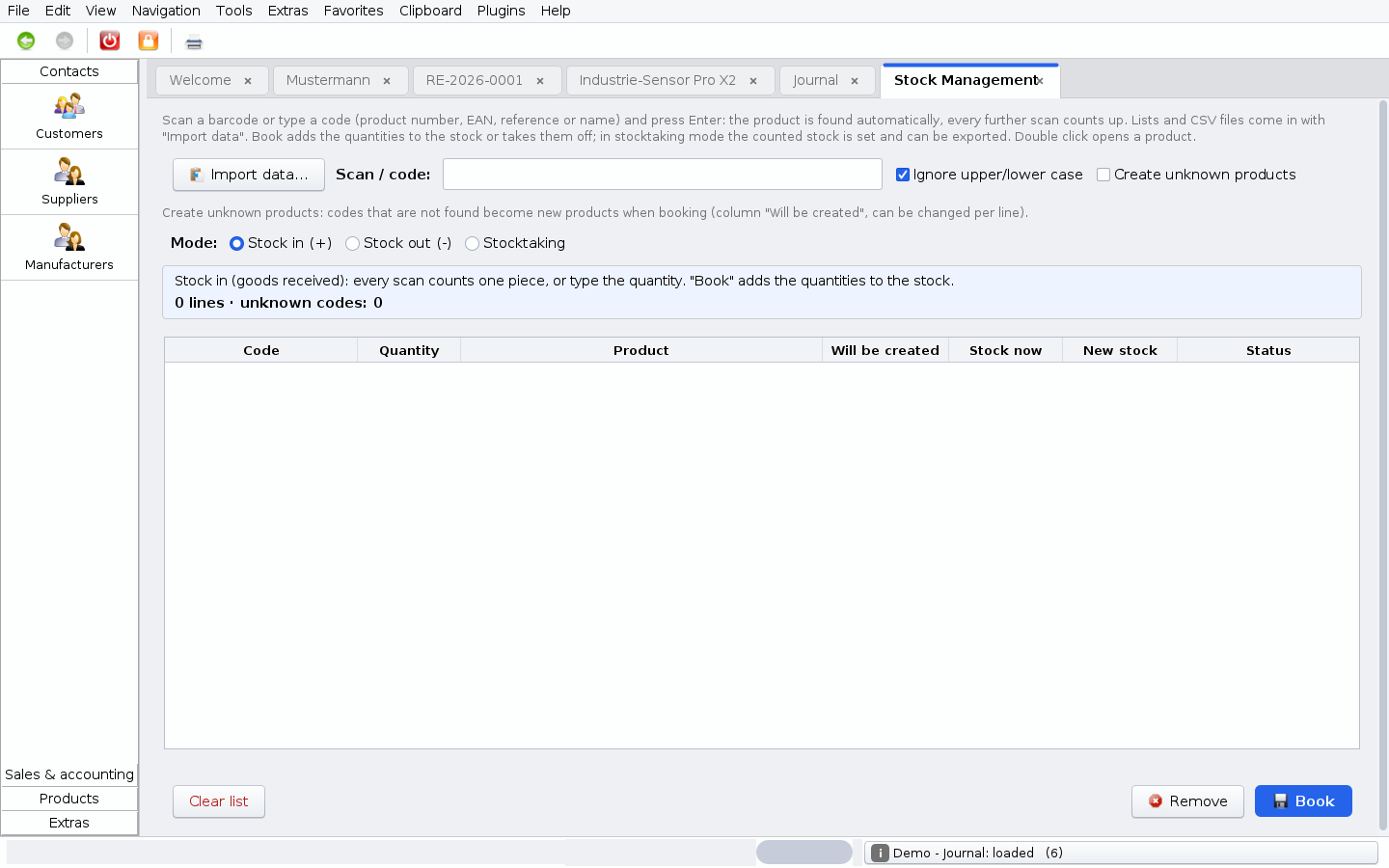
- Stock management (navigation › Products): scan or type a code, Enter – the product is found automatically by product number, EAN (also with spaces/dashes), reference or name; every further scan counts up. Stock in or out, Book.
- Create unknown products: column Will be created (default from the box Create unknown products); booking creates them (the code as name, a valid EAN as EAN). Double click opens the product; an unknown one is created and opened.
- Import data … (button left of the scan field, or Ctrl+V in the table) opens a wizard: 1. Source – paste a list (EANs, numbers, names; prefilled from the clipboard) or choose a CSV file; 2. Settings – separator of the list (comma, semicolon, space, one per line; suggested) or, for a file, header, column of the code and column of the quantity (detected from the column names, none: 1 per row); 3. Preview – products found and Will be created per line, with Create unknown products. Found products are topped up, duplicate codes add up, new products get the other recognised columns of their row (name, prices, VAT, unit …).
- Stocktaking: mode Stocktaking shows Expected, Counted and Difference. Load all products lists all products (no services) uncounted; scanning or typing counts. Book sets the stock of the counted products (after asking). Export CSV / Export HTML save the stocktaking list (differences marked, summary).
 - Cash register and TSE: test TSE (not certified), signed transactions stored per sale, receipt fields and TSE QR code (
TSEQRCode.img); sales can be cancelled (signed credit note, negative TSE amounts); JavaPOS/ADK can be downloaded or taken from an installed Epson ADK, YaBS runs without it. No certified TSE yet – Kasse und TSE.
- Shopify: import new orders as orders or invoices, customers as contacts, never twice – Shopify.
- CSV import: File › Import › CSV file … imports customers, suppliers, manufacturers or products in three steps. 1) Choose the file – encoding (UTF-8 or Windows/Excel), separator (; , tab |) and header row are detected and can be changed. 2) Choose for every column what it becomes – guessed from the column names (German and English) – with a live preview. Every row is checked first; rows with problems are marked red, listed with the reason and not imported. 3) Result: how many were imported, which were skipped and why. Numbers and "created on" dates from the file are kept; importing the same file again creates no duplicates.
- Fakturama import, VAT: a default VAT rate for everything whose rate cannot be determined; rates already in YaBS are used; the rate is read from the name if the value is missing. Status messages are collected during the Fakturama and Shopify imports; one line afterwards says how many were skipped.
- Texts are stored as typed: apostrophes and backslashes stay unchanged. Data of older YaBS versions (` for ', <removedbackslash> for \) is read and found correctly.
- Dropdowns always take their colors from the look and feel (readable with dark Linux desktop themes); in the YaBS theme the selected entry is light blue with dark text, as in tables.
- Fast: records load quickly and with little memory (e.g. 2000 contacts in 4 ms), documents open quickly (dialogs and calendars are created on first use), database queries do not block the user interface. The database layer also runs without a screen (server, tests).
Deutsch: Hinweise-und-Neuerungen