Templates: demo templates and all fields (EN)¶
Complete field list: For a full reference of all built-in template fields with short descriptions (documents, position table
xtable1, contacts & addresses, company info, products, reminders, journal, POS/TSE, images & plugins), see the dedicated page: All Template Fields (Complete Reference).
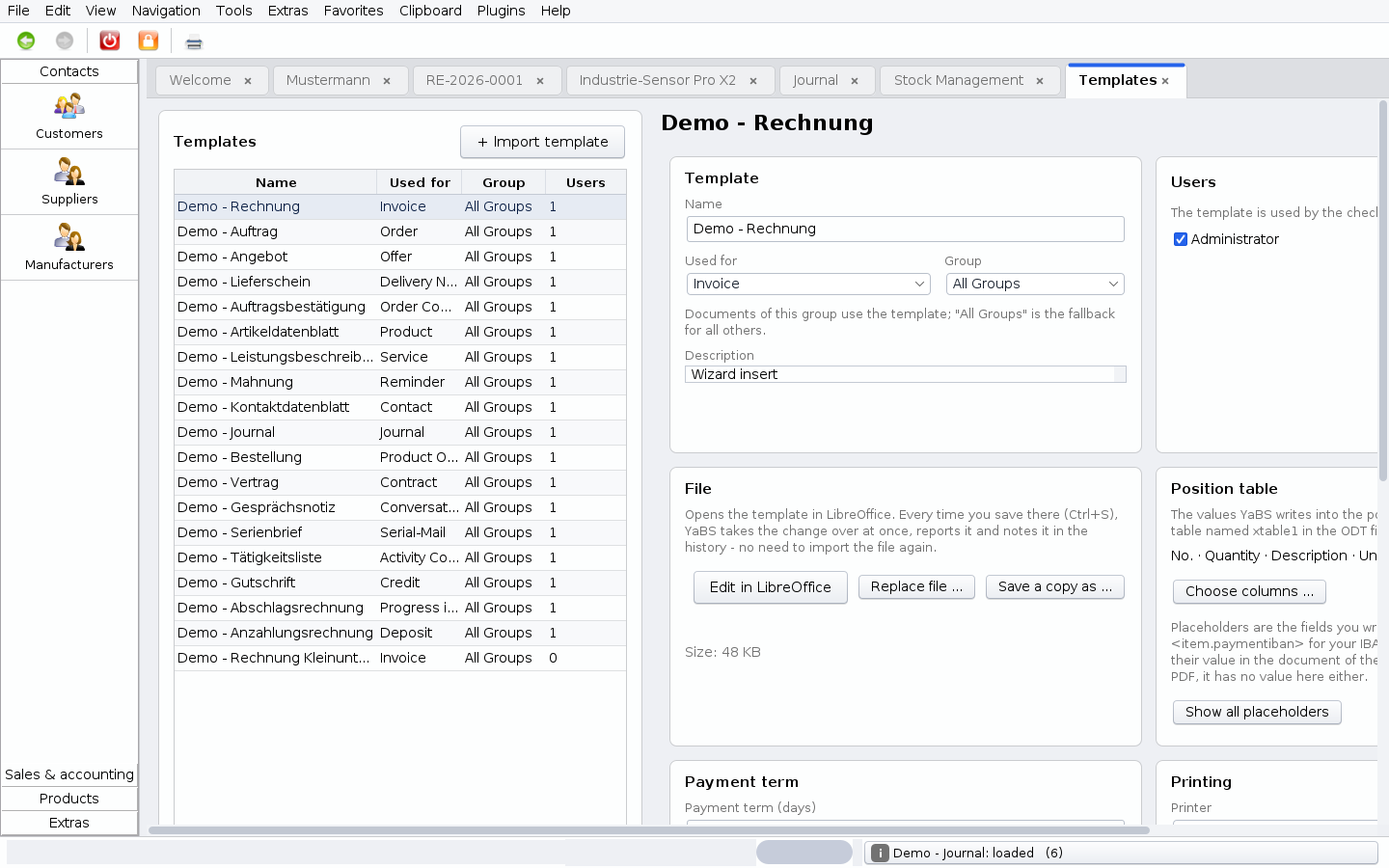
- New installations import 18 demo templates (one per template type, named "Demo -
") with a dummy logo, assigned to the administrator for all groups. The demo invoice ("Demo - Rechnung", with logo placeholder and the QR code QRCode.img) is the administrator's invoice template; users without an invoice template get it at their first login. - Small business: there is also "Demo - Rechnung Kleinunternehmer": no VAT column or VAT table, with the note
<companyinfo.smallbusinessnote>(§ 19 UStG) and the QR code. If "small business" is chosen at the first start (the default), it is the assigned invoice template and the regular demo invoice is imported but not assigned – otherwise the other way round. See Small business VAT exemption. - Each demo template ends with a page "Verfügbare Felder" listing every field of its type with a ready-to-copy placeholder; delete the page in your own template.
- Image fields:
Barcode.img/Code39.img(Code 39 barcode of the document/recordcnumber, included in all demo templates except the journal),QRCode.img(GiroCode on invoices),TSEQRCode.img(TSE QR code on receipts). - Regenerate with
python3 tools/templates/gen.py .(outputsrc/main/resources/extra/templates/demo-XX.odtand the download copies intools/templates/). - Position tables are tables named
xtable1; their columns follow the format of the template: 1 pos., 2 quantity, 3 unit, 4 text, 5 unit price net, 6 total net, 7 tax rate, 8 tax amount, 9 total gross, 10 link, 11 short name, 12 discount %, 13 total net after discount. The document templates use1,2,4,5,7,6: the tax rate of each position before the total.
Custom template fields (properties)¶
Besides the fixed fields you can add your own fields with any name. In a template they are always <…property.NAME>.
Where to define them¶
| Where | Applies to | Field in the template |
|---|---|---|
| Contact › section Properties (name, value) | this one contact | documents: <item.contact.property.NAME>, contact data sheet: <contact.property.NAME> |
| Control panel › Script manager, choose "For" and group (see Scripts) – preferred | all records of that kind and group, e.g. All documents | contact: as above; document: <item.property.NAME>; product / service: <product.property.NAME> |
- In a contact the properties are saved with the contact. A prefix typed with the name (
contact.property.anrede,<item.contact.property.anrede>) is removed –anredeis stored. Test… shows all fields of the contact as named in an invoice (<item.contact.…>), with their values (scripts run). - NAME: letters and digits only, preferably lower case. Names starting with
modifyorexecuteare save scripts and do not become template fields. - The prefix before
.property.is the record's prefix in the template: the contact of a document isitem.contact, so<item.contact.property.anrede>– notitem.contact.anrede, and notcontact.property.anrede(that one is for the contact data sheet only). - Products have no Properties section of their own; define product fields in the script manager. They are available in the product data sheet / service description, not in the positions of a document.
Plain value or script¶
- A plain value (e.g.
2 weeks) is inserted as it is. - A value that starts and ends with
#is a Groovy script; its result goes into the template. The script manager adds the#itself – enter just the script there. In the Properties section you write the#yourself. The script must not contain a#. - In the script the fields have their template names, without
<>: - in a contact field:
contact.cname,contact.prename,contact.ismale,contact.property.deliverytime… - in a document field:
item.cnumber,item.netvalue,item.contact.cname,item.contact.ismale,item.contact.property.anrede… - in a product field:
product.cnumber,product.externalnetvalue…
These are the raw values: ismale is true/false (1/0 in the template), amounts are numbers. Formatted fields (item.netvaluef) via getFormField('item.netvaluef'). Available are the fields of the record the field belongs to and what hangs on it – a contact field has contact.…, but no item.…, even while the contact is printed in an invoice.
- Also: dbo – the record itself (e.g. dbo.__getCname()), getObject('contact', 'Name') – another record.
- If a script fails (e.g. an unknown variable), the script text appears unchanged in the document – check it with Test with a record… in the script manager.
Examples¶
Salutation per contact – in the contact under Properties:
| Name | Value |
|---|---|
anrede |
#contact.ismale ? "Dear Mr " + contact.cname + "," : "Dear Mrs " + contact.cname + ","# |
In the invoice template: <item.contact.property.anrede> → Dear Mr Miller,
The same for all contacts – script manager: kind Contact, group All groups, name anrede, script (without #):
contact.ismale ? "Dear Mr " + contact.cname + "," : "Dear Mrs " + contact.cname + ","
Plain value per contact – name deliverytime, value 2 weeks; in the template <item.contact.property.deliverytime>.
Document field using the contact – script manager, kind Invoice, name greeting:
(item.contact.ismale ? "Dear Mr " : "Dear Mrs ") + item.contact.cname
In the template: <item.property.greeting>.
Product field – script manager, kind Product, name note: "Item " + product.cnumber + " – plus shipping"; in the product data sheet <product.property.note>.
Download templates¶
The current demo templates for download – e.g. for existing installations (they are not replaced there automatically) or as a starting point for your own. These are the same files new installations get.
| Template | Type no. | Column format | VAT per rate | QR code | Download |
|---|---|---|---|---|---|
| Invoice | 0 | 1,2,4,5,7,6 |
yes | yes | Demo-00-Rechnung.odt |
| Invoice small business (no VAT) | 0 | 1,2,4,5,6 |
– | yes | Demo-00-Rechnung-Kleinunternehmer.odt |
| Order | 1 | 1,2,4,5,7,6 |
yes | – | Demo-01-Auftrag.odt |
| Offer | 2 | 1,2,4,5,7,6 |
yes | – | Demo-02-Angebot.odt |
| Delivery note | 3 | 1,2,4,5,7,6 |
yes | – | Demo-03-Lieferschein.odt |
| Order confirmation | 4 | 1,2,4,5,7,6 |
yes | – | Demo-04-Auftragsbestaetigung.odt |
| Product sheet | 5 | – | – | – | Demo-05-Artikeldatenblatt.odt |
| Service description | 6 | – | – | – | Demo-06-Leistungsbeschreibung.odt |
| Reminder | 7 | – | – | – | Demo-07-Mahnung-zu-Rechnung.odt |
| Contact sheet | 8 | – | – | – | Demo-08-Kontaktdatenblatt.odt |
| Journal | 9 | 6,9,10,1,8,11,12,13,14,15 |
– | – | Demo-09-Journal.odt |
| Purchase order | 10 | 1,2,4,5,6 |
– | – | Demo-10-Bestellung.odt |
| Contract | 11 | 1,2,4,5,7,6 |
yes | – | Demo-11-Vertrag.odt |
| Conversation note | 12 | – | – | – | Demo-12-Gespraechsnotiz.odt |
| Mass letter | 13 | – | – | – | Demo-13-Serienbrief.odt |
| Activity list | 14 | 1,2,4,5,9 |
– | – | Demo-14-Taetigkeitsliste.odt |
| Credit note | 20 | 1,2,4,5,7,6 |
yes | – | Demo-20-Gutschrift.odt |
| Part payment invoice | 21 | 1,2,4,5,7,6 |
yes | yes | Demo-21-Abschlagsrechnung.odt |
| Deposit invoice | 22 | 1,2,4,5,7,6 |
yes | yes | Demo-22-Anzahlungsrechnung.odt |
| Receipt (cash register) | 0 | 2,4,7,9 |
– | TSE | Kassenbon.odt |
To use one: Template manager › Import, choose the file, enter the type as kind and the column format from the table as format, then assign it to the user (and group). "VAT per rate": a table with one row per tax rate below the totals. QR code: EPC QR code on invoices; on the receipt the TSE QR code (see Cash register and TSE). All demo templates except the journal also include the Code 39 barcode (Barcode.img) of the document/record number (cnumber) next to the heading.
Service date and last change¶
Every invoice must state the date of the supply or service (§ 14 Abs. 4 Nr. 6 UStG). A document has three separate dates:
| Field in the document | Meaning | Template field |
|---|---|---|
| Document date | the date of the invoice (offer, …) | item.dateadded |
| Service date | date of the supply or service, editable. Empty: the document date (filled in when saved). Not changed when the document is opened. BT-72 in e-invoices. | item.servicedate (or item.datetodo) |
| Last changed | when the document was saved last; set automatically, not editable | item.datelastupdated |
The demo templates of invoice, credit note, part payment and deposit invoice (also the small business invoice) show "Leistungsdatum" below "Datum".
Credit note / invoice correction: <item.correctedinvoice> is the reference to the corrected invoice ("Invoice R-0042 of 04.11.2026", empty without one), separately <item.correctedinvoicenumber> and <item.correctedinvoicedate>. The demo credit note has the heading "Rechnungskorrektur" (in German VAT law a "Gutschrift" is a self-billed invoice, § 14 Abs. 2 Satz 2 UStG) and shows "Zu Rechnung" below the service date. Unchanged demo templates of older versions are replaced at login; changed templates stay – add <item.servicedate> there yourself.
Peppol-ID and EORI number¶
For e-invoices (EN 16931 BT-34 / BT-49) and EU customs clearance, the Peppol-ID and EORI number of your company and the contact are available as template fields:
| Field | Meaning | Where to enter |
|---|---|---|
<companyinfo.peppolid> |
Seller Peppol-ID (BT-34, format <EAS-scheme>:<id>, validated against CEF EAS BR-CL-25) |
Company Info › E-Invoice (companyinfo.peppolid) |
<companyinfo.eori> |
Seller EORI number (Union Customs Code Annex 12-01 a2 + an..15, e.g. DE123456789012345) |
Company Info › Tax next to VAT ID (companyinfo.eori) |
<item.contact.peppolid> / <contact.peppolid> |
Buyer Peppol-ID (BT-49, in documents / contact sheet) |
Contact › E-Invoice tab / Payment card (property peppol-id, with optional per-invoice peppol-id override) |
<item.contact.eori> / <contact.eori> |
Buyer EORI number (in documents / contact sheet) | Contact › EORI number next to VAT ID (property eori) |
The default and demo invoice templates display the company EORI (Tabelle2) and customer VAT ID & EORI (<item.contact.taxnumber> <item.contact.eori>, Tabelle4, Art. 226(4) VAT Directive / § 14a UStG). In XRechnung XML and ZUGFeRD PDF, Peppol-IDs are written to <ram:URIUniversalCommunication><ram:URIID schemeID="..."> (falling back to schemeID="EM" + email when empty, while preserving the contact email in DefinedTradeContact), and EORI numbers are emitted as EN 16931 customs notes (BG-1 / BT-21 = CUS, BT-22).
Cross-border trade, customs & commercial invoice¶
For extra-EU exports and customs clearance, additional invoice and product fields as well as a bilingual commercial invoice template (Demo-00-Handelsrechnung-Export.odt / demo-00-commercial.odt) are available:
| Field | Meaning | Where to enter |
|---|---|---|
<item.currency> |
ISO 4217 currency code (BT-5, e.g. EUR, CHF, USD) |
Invoice property currency, else contact currency dropdown (bankcurrency) or contact property currency, fallback EUR |
<item.incoterms> |
Incoterms® + named place (e.g. DAP Zürich) |
Property incoterms on invoice or contact |
<item.netweight> |
Total net weight (kg); automatically summed from linked product weights if not overridden | Invoice property netweight (optional) |
<item.grossweight> |
Total gross weight (kg) | Invoice property grossweight |
<item.packages> |
Package count / description | Invoice property packages |
<product.hscode> |
HS / CN tariff code (BT-158, 4–11 digits) |
Product (modern view › Classification) |
<product.origincountry> |
Country of origin (BT-159, ISO 3166 alpha-2) |
Product (modern view › Classification) |
<product.netweight> |
Net weight per unit (kg) | Product (modern view › Classification) |
In the position table (xtable1), columns 14 (HS / Tariff code), 15 (Country of origin), and 16 (Net weight (kg) per line = unit weight × quantity) are available in the template manager.
VAT per tax rate (§ 14 Abs. 4 Nr. 8 UStG)¶
If an invoice has positions with different tax rates (e.g. 19 % and 7 %), the net and the tax amount must be stated per rate. YaBS calculates the tax per rate on the sum of the net amounts and rounds once – exactly like the e-invoice (ZUGFeRD / XRechnung, ApplicableTradeTax), so the PDF and the XML match to the cent. The document demo templates show this table below the totals.
A table with one row per rate: a table row with vatgroups.* placeholders is repeated for each rate (highest first):
| Rate | Net | VAT | Gross |
|---|---|---|---|
<vatgroups.name> |
<vatgroups.netf> |
<vatgroups.vatf> |
<vatgroups.grossf> |
| Total | <item.netvaluef> |
<item.taxvaluef> |
<item.grosvaluef> |
| Field | Content |
|---|---|
vatgroups.rate |
the rate, e.g. 19,00 % |
vatgroups.ratevalue |
the rate as number, e.g. 19 or 7.7 |
vatgroups.name |
the name of the rate in Settings › Taxes, else VAT 19,00 % / Tax free |
vatgroups.net / vatgroups.netf |
net of the rate (number / with currency) |
vatgroups.vat / vatgroups.vatf |
tax of the rate |
vatgroups.gross / vatgroups.grossf |
gross of the rate |
Fixed fields (for templates with a fixed layout): item.vatgroup1.rate, item.vatgroup1.netf, item.vatgroup1.vatf, item.vatgroup1.grossf … and item.vatgroup2.*, item.vatgroup3.* (same names as above), plus item.vatgroupcount (number of rates) and item.hasmultipletaxrates (true / false).
Older templates keep working: item.tax (the rate; with several rates the lowest one), item.taxgroup1, item.taxgroupvalue1 … and item.taxgroups (text with all rates) stay as they were. Templates already imported, and their column format, are not changed; import the new demo templates in the template manager.
Images in templates¶
| Image name | Content |
|---|---|
Barcode.img (or Code39.img) |
Code 39 barcode of the document/record number (cnumber, e.g. item.cnumber, contact.cnumber, product.cnumber, reminder.item.cnumber) with human-readable text below |
QRCode.img |
EPC QR code (GiroCode) on invoices – see QR code |
TSEQRCode.img |
TSE QR code on receipts – see Cash register and TSE |
Set the name in LibreOffice under Image › Properties › Options › Name (the frame size set in the template is preserved, e.g. 5.0 × 1.0 cm for the barcode). If there is no data – or if cnumber contains characters outside Code 39 – the placeholder image is removed automatically.
Code 39 notes: supports 0–9, A–Z, -, ., space, $, /, +, % up to 80 characters; lowercase letters are converted to uppercase and start/stop delimiters (*) are added automatically. All demo templates except the journal already include Barcode.img on the heading row.
Deutsch: Vorlagen